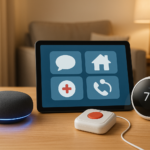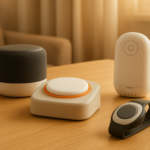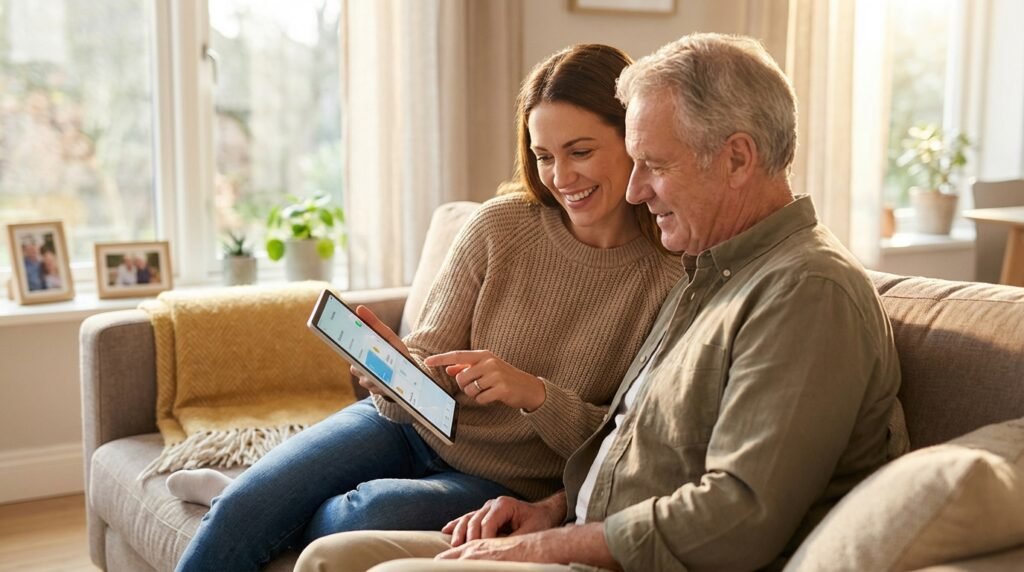

Caregiving is a delicate, often exhausting balancing act. You want to ensure your aging parents or loved ones are safe, healthy, and supported, but you also want to respect their fiercely held independence and their desire to age comfortably in their own home. In the past, achieving this balance often meant frequent drop-ins, constant phone calls that felt like interrogations, or hiring expensive in-home help. Today, smart technology offers a powerful, dignified bridge.
Smart home devices, wearable health monitors, and automated systems have evolved far beyond mere novelties or conveniences for the tech-obsessed. For seniors and their caregivers, these tools have become genuine lifelines. They can instantly detect falls, prevent dangerous medication errors, secure the home against intruders, and significantly reduce the deep isolation that often accompanies aging in place.
However, the sheer volume of available technology can be overwhelming. As a caregiver, you are already managing medical appointments, finances, and your own daily life. Figuring out the difference between Wi-Fi protocols or choosing the right motion sensor shouldn’t add to your burden. Furthermore, not every senior needs a fully automated, voice-controlled smart home, and introducing too much technology too quickly can cause frustration and anxiety rather than relief.
This comprehensive guide is designed specifically for you—the caregiver. It will walk you through how to assess your loved one’s true needs, choose the most effective devices on the market, set them up reliably, and introduce them in a way that builds confidence rather than confusion.
Phase 1: Assessing Needs and Tech Readiness
Before you add a single device to an online shopping cart, you must step back and critically evaluate the specific, day-to-day needs of the senior in your care. Technology should solve actual, existing problems, not create new ones. A one-size-fits-all approach rarely works in eldercare, because aging affects everyone differently.
To determine exactly where to start your smart home journey, evaluate your loved one across three main categories:
1. Physical Mobility and Sensory Abilities
Consider the physical limitations your loved one faces daily, as this will dictate the physical design of the tech you choose.
- Vision: Do they struggle to read small text on a smartphone or see the buttons on a traditional remote? If so, voice-activated technology (like smart speakers) or devices with high-contrast, large-tablet displays will be necessary.
- Hearing: Do they frequently miss phone calls or fail to hear the doorbell ring? Devices that offer visual alerts—such as smart lamps that flash different colors when the phone rings—or tech that integrates directly with modern Bluetooth hearing aids can be highly beneficial.
- Mobility: Is getting up from a favorite chair to answer the door, adjust the thermostat, or turn off a hallway light painful or dangerous? Automated lighting and smart doorbell cameras can eliminate unnecessary, risky trips across the room, dramatically reducing fall risks.
2. Cognitive Status
A senior’s cognitive health dictates how much direct interaction they should have with the technology.
- Sharp and Independent: Seniors with strong cognitive function can easily learn to use smartphone apps, tablets, and specific voice commands. You can safely introduce interactive tech.
- Mild Cognitive Impairment: If short-term memory is beginning to fade, focus on passive technology. This includes devices that work automatically in the background without requiring the senior to push a button or remember a command. Examples include motion-sensor lights, automatic pill dispensers with loud alarms, or sensors that send you an alert if a stove is left on.
- Dementia or Alzheimer’s: In cases of advanced cognitive decline, all technology should ideally be invisible to the senior and entirely managed by the caregiver. Cameras in common areas, GPS tracking insoles, and discreet door alarms are useful here, provided they do not cause the senior paranoia or distress.
3. Current Tech Comfort Level
Introduce new technology by building on the foundation of what they already know. If they are comfortable using a traditional TV remote, a simplified, large-button universal smart remote might be an easy transition. If they use a smartphone strictly for phone calls but nothing else, introducing a smart speaker might be easier than teaching them to navigate a complex tablet app. Always aim for the path of least resistance.
Caregiver Tech-Matching Matrix
To help you narrow down your options, use this matrix to map your loved one’s primary challenge to the most effective tech solution.
| Senior’s Primary Challenge | Recommended Tech Solution | How It Helps the Caregiver | Setup Difficulty |
|---|---|---|---|
| Mobility / Fall Risk | Voice assistants, smart lighting, automated thermostats | Reduces emergency phone calls; provides peace of mind via automated routines. | Easy |
| Memory / Medication | Smart pill dispensers, stove auto-shutoff sensors | Prevents dangerous overdoses or missed doses; prevents house fires. | Medium |
| Wandering / Dementia | GPS wearables, door/window contact sensors | Sends instant smartphone alerts if the senior leaves the house at unusual hours. | Medium |
| Isolation / Hearing | Smart displays (with drop-in video), vibrating wearables | Allows for visual check-ins; ensures they “feel” calls even if they can’t hear the phone. | Easy |
| Physical Security | Video doorbells, smart locks | Allows the caregiver to remotely let in home-health aides or check who is at the door. | Hard (requires tools) |
Phase 2: Core Categories of Senior Smart Tech
Once you understand what your loved one needs based on the assessment above, you can begin exploring specific solutions. Senior-friendly smart technology generally falls into three main pillars: Health and Safety, Home Automation, and Connection.
Category 1: Health and Safety Devices
Physical safety is usually the primary, sleep-depriving concern for caregivers. These devices are designed to monitor wellbeing passively and provide immediate alerts to you or emergency services in a crisis.
Medical Alert Systems and Wearables The traditional, clunky “help button” on a lanyard still exists, but the category has evolved beautifully. Modern smartwatches and dedicated medical wearables now disguise life-saving tech in sleek designs.
- What they do: They track steps, monitor heart rates, and most importantly, feature SOS buttons.
- The critical feature: Look for automatic fall detection. This uses built-in accelerometers to sense a sudden drop followed by a lack of movement. If the senior is knocked unconscious or is in too much pain to press a button, the device will automatically call emergency services and text the caregiver. Ensure the device works both inside the house (via Wi-Fi) and outside (via cellular LTE connection).
Smart Medication Management Medication non-adherence—either forgetting a dose or accidentally taking a double dose—is a leading cause of hospitalization for seniors.
- What they do: Smart pill dispensers can hold up to a month’s worth of medication. They are locked, and the internal carousel only rotates to expose the correct pills at the exact prescribed time.
- The critical feature: The best models feature loud, persistent audible alarms and flashing lights. More importantly, they connect to an app that sends the caregiver a push notification if the medication remains untaken 30 minutes after the alarm goes off.
Environmental Sensors These are passive safety devices placed around the home to prevent catastrophic accidents.
- Water Leak Sensors: Placed under sinks, near toilets, or by the washing machine, these alert your phone to leaks before they become massive slipping hazards or cause thousands of dollars in water damage.
- Stove Monitors: These devices monitor the kitchen. If they detect the stove is on but register no motion in the kitchen for a pre-set amount of time (e.g., 10 minutes), they will automatically shut off the power or gas to the stove, preventing devastating fires.
Category 2: Home Security and Automation
Automation reduces the physical friction of daily life. It makes the home work for the senior, rather than the senior working to maintain the home.
Smart Video Doorbells A video doorbell allows a senior to see exactly who is at the door from their smartphone or smart display without having to get up, unlock the door, or open it to a stranger.
- The critical feature: It allows the caregiver to monitor who is approaching the home via an app on their own phone, no matter where they are. Choose a doorbell with crisp two-way audio so you can speak to delivery drivers or uninvited guests on your parent’s behalf.
Smart Locks Smart locks eliminate the need for fumbling with small metal keys, which can be nearly impossible for seniors with arthritis or neuropathy.
- The critical feature: They can be programmed to automatically lock the door every night at 9:00 PM. Furthermore, they allow caregivers, dog walkers, or emergency medical personnel to enter the home using a unique PIN code or a remote unlock feature from a smartphone.
Smart Lighting Tripping over a rug or a pet in the dark is a massive, easily preventable fall risk. Smart lighting solves this elegantly.
- The critical feature: You can set up routines where living room lights automatically turn on to a warm glow 15 minutes before sunset. Additionally, you can use simple motion-activated smart plugs attached to existing lamps in the bedroom, hallway, and bathroom to instantly illuminate a safe path for late-night bathroom trips.
Category 3: Connection and Socialization
Isolation can lead to severe depression and has been linked to rapid cognitive decline in older adults. Technology can help bridge the physical gap between seniors, their families, and the outside world.
Smart Displays Devices like the Amazon Echo Show, Google Nest Hub, or simplified, senior-specific tablets offer a highly visual way to communicate. They allow for video calls, digital photo frame sharing (where you can push photos of the grandkids directly to their screen), and large visual reminders for appointments.
- The critical feature: Look for “drop-in” features. With prior permission, a caregiver can initiate a video call that connects automatically, without the senior needing to tap “answer.” This is incredibly helpful for visually checking in on someone who has severe mobility issues or cannot figure out how to operate a touchscreen.
Voice Assistants Smart speakers act as hands-free companions. Seniors can ask for the weather, play their favorite music from decades past, or set simple baking timers. More importantly, they can be programmed so the senior can simply yell, “Call for help,” to instantly dial a designated family member.
“Isolation can lead to severe depression and has been linked by the National Institute on Aging to rapid cognitive decline in older adults. Technology can help bridge the physical gap…”
Smart Device Shopping Quick-Reference Guide
Before you buy, use this table to verify you are getting the right features for your specific use case.
| Device Category | Best For… | Crucial Feature to Look For | Privacy Consideration |
|---|---|---|---|
| Medical Wearables | Active seniors living alone. | Automatic fall detection (so they don’t have to press a button if unconscious). | High (Tracks GPS location). |
| Indoor Cameras | High-risk seniors with severe mobility or cognitive issues. | Two-way audio to speak to them in an emergency. | Very High (Only place in common areas like living rooms or kitchens). |
| Motion/Contact Sensors | Monitoring daily routines passively without cameras. | App notifications (e.g., “Bathroom door hasn’t opened since 8 PM last night”). | Low (Maintains dignity while tracking activity). |
| Smart Locks | Allowing access to family or emergency responders. | Physical key backup in case the battery dies or Wi-Fi drops. | Low. |
| Smart Displays | Reducing loneliness and enabling visual check-ins. | “Drop-in” capability so the senior doesn’t have to navigate a screen to answer. | Medium (Ensure the camera has a physical privacy shutter). |
Phase 3: The Caregiver’s Buying Guide
When you are the one purchasing, installing, and maintaining the tech, your criteria for what makes a “good” device will differ drastically from a standard consumer buying a gadget for themselves. Keep these four critical factors in mind:
1. The Caregiver App Experience You will be interacting with the device’s companion app on your phone frequently. Before buying, read app store reviews specifically looking for caregiver feedback. Is the app buggy? Does it require constant re-logins? Can you manage the device entirely remotely, or do you have to be standing on the same Wi-Fi network to change a setting? You want devices that allow full remote management.
2. Battery Life vs. Hardwiring A life-saving device is utterly useless if the battery dies. For seniors, remembering to charge devices is a very common hurdle. Whenever possible, choose devices that physically plug into the wall (like smart speakers, stationary indoor cameras, and smart clocks). For wearables, look for those with multi-day battery life, and establish a strict routine (e.g., the watch goes on the charger every single time they take a shower).
3. Hidden Subscription Costs The initial price of the hardware is rarely the final cost. Many devices—especially medical alert systems, smart pill dispensers, and security cameras—require monthly subscription fees to access premium features. These features often include 24/7 emergency dispatch, cloud video recording history, or cellular connectivity so the device works outside the home. Factor these ongoing, long-term costs into your budget before committing to a hardware ecosystem.
4. Ecosystem Compatibility Try to stick to one “ecosystem” (e.g., Google Home, Amazon Alexa, or Apple HomeKit). Mixing and matching a Ring doorbell (Amazon), a Nest thermostat (Google), and an Apple HomePod makes the setup unnecessarily complicated and forces you to juggle three different apps. Choose one central platform and buy devices verified to work smoothly within it.
Phase 4: Step-by-Step Setup and Installation
Setting up smart tech for a senior requires vastly more preparation than setting it up for yourself. You want the system to be as bulletproof and invisible as possible before they ever interact with it.
Step 1: Upgrade and Secure the Wi-Fi
Every smart home device relies on stable internet. If your loved one is using a dusty, outdated router provided by their internet company five years ago, it will constantly drop the connection. This renders the smart devices useless and causes massive frustration.
- Invest in a reliable mesh Wi-Fi system. This involves placing two or three small router hubs around the house to ensure there are zero dead zones, especially near the thick front door (for video doorbells) or in the far corner of the bathroom (for leak sensors).
- Change the Wi-Fi password to something highly secure but easy for you to type, and write it down in a secure location in the house.
Step 2: Pre-Configure Devices Before Installation
This is a golden rule: Do not unbox devices at the senior’s house if you can avoid it. Unboxing, downloading massive firmware updates, and syncing accounts takes hours. Watching you struggle with setup can make the technology seem overly complicated and intimidating to an observant senior.
- Take the devices to your own home first.
- Create a dedicated, clean email account for the senior’s smart home ecosystem (e.g.,
smithfamilyhome@email.com) rather than using their personal email, which might be cluttered with spam or easily compromised. - Connect the devices to power, download all updates, connect them to the accounts, and set up your name as the primary emergency contact.
Step 3: Physical Installation
When placing devices in the senior’s home, prioritize accessibility, loud volume, and cable management.
- Ensure smart speakers are placed in central locations (like the kitchen island or next to their favorite armchair) where weak or breathless voice commands can still be heard clearly.
- Use zip ties or cord covers to tuck away all power cords to prevent tripping hazards.
- If installing smart locks or doorbells, ensure they fit securely and test that the senior’s existing physical keys still work smoothly in the new hardware.
Step 4: Automate Everything Possible
The ultimate goal is to require zero input from the senior. Set up automated routines in the app:
- Nighttime Routine: At 10:00 PM, the front door locks automatically, the thermostat lowers by two degrees, and the living room lights slowly dim to off.
- Morning Routine: At 7:00 AM, the kitchen lights turn on to 50% brightness to greet them.
- Alerts: Set up push notifications to your own phone if the front door is opened between midnight and 6:00 AM, indicating potential wandering.
Phase 5: Onboarding Your Loved One
Purchasing and installing the tech is easy; introducing it is often the hardest part of the process. Seniors may feel intimidated, resistant to change, or deeply worried that the presence of technology means you think they are losing their independence.
Focus on the Benefit, Not the Feature Do not explain how the new smart thermostat uses geofencing to adjust the HVAC system. That is overwhelming tech jargon. Instead, say, “This new dial means you won’t have to get out of a warm bed if you feel cold in the middle of the night; you can just ask the speaker on your nightstand to warm up the room.” Frame absolutely every piece of technology around how it keeps them in control and makes their day physically easier.
Address the “Big Brother” Fear Many seniors fear being watched. Always balance safety with their fundamental right to dignity and privacy. Indoor cameras should generally be avoided in private spaces like bedrooms and bathrooms unless medically necessary and explicitly agreed upon. Explain that motion sensors don’t take pictures; they just act as invisible check-ins to let you know they are up and moving around safely.
Take it One Step at a Time Do not install a doorbell, a smart lock, a voice assistant, and a medical wearable all on the same Saturday. This guarantees rejection. Start with one high-impact, low-effort device, such as a voice-activated smart speaker playing their favorite music from the 1960s. Once they realize the speaker is fun, helpful, and non-threatening, you can introduce the next device a few weeks later.
Create a Laminated “Cheat Sheet” Memory slips happen, especially when learning new habits. Create a large-print, laminated cheat sheet and place it near the devices. For a smart speaker, list the exact phrases they need to use:
- “Alexa, what time is it?”
- “Alexa, turn on the living room lights.”
- “Alexa, call my daughter.”
Validate Their Frustrations If they struggle to use a device, do not dismiss their frustration or sigh impatiently. Acknowledge that learning new things is genuinely difficult. If a device proves to be continuously frustrating or causes daily anxiety, be willing to unplug it and remove it. Technology should reduce stress, not add to it.
Phase 6: Troubleshooting and Long-Term Management
Once the system is up and running smoothly, your role shifts from installer to long-term IT support.
Manage False Alarms Calmly If a fall detection watch goes off because the senior simply bumped their wrist hard against a table, or a motion sensor triggers a weird alert, stay absolutely calm. If you panic and call them frantically every time the system alerts you, the senior may become afraid to wear the device for fear of “bothering” you. Treat false alarms as excellent, successful tests of the system’s responsiveness.
Prepare for Power Outages and Internet Drops Smart tech is inherently vulnerable to power grids and internet service providers. Ensure your loved one has traditional, analog backup systems in place: flashlights in easy-to-reach spots for power outages, a standard landline or simple cell phone if the Wi-Fi goes down, and physical keys hidden in a lockbox if the smart lock battery completely dies.
Adapt as Needs Change A senior’s health is not static. A smart home system that works perfectly today may need to be adjusted in a year. If physical mobility decreases, you may need to add more voice-activated controls so they don’t have to reach for switches. If cognitive decline progresses, you may need to transition from devices the senior actively uses (like a tablet) to passive sensors that simply monitor their safety in the background.
The Caregiver’s Smart Home Maintenance Routine
To keep the tech functioning reliably, implement this simple maintenance schedule. Put these reminders in your own calendar.
| Maintenance Task | Frequency | What to Do |
|---|---|---|
| Check Wearable Batteries | Daily / Weekly | Ensure smartwatches or medical lanyards are being charged. Set a routine (e.g., charge during showers). |
| Test Medical Alert Buttons | Monthly | Physically press the SOS button to ensure it connects to the dispatch center or your phone. Let them know it’s a test. |
| Review Sensor Logs | Monthly | Check the app for motion sensors or door sensors to ensure they are still registering activity and haven’t disconnected from Wi-Fi. |
| Clean Camera Lenses | Quarterly | Wipe down video doorbells and indoor cameras with a microfiber cloth to remove dust and smudges. |
| Replace Backup Batteries | Annually | Swap out the AA/AAA batteries in smart locks, water leak sensors, and smoke/carbon monoxide detectors. |
Frequently Asked Questions (FAQs)
Q: Are smart home devices secure from hackers? A: While no digital system is 100% immune, you can drastically reduce risks by following basic cybersecurity hygiene. Use strong, unique passwords for all device accounts, enable two-factor authentication (2FA) on your caregiver apps, and keep the home’s Wi-Fi router updated and secured with a strong password. Never leave default passwords (like “admin123”) on cameras.
“While no digital system is 100% immune, you can drastically reduce risks by following basic smart home security guidelines from the FTC. Use strong, unique passwords for all device accounts…”
Q: Does my loved one need to own a smartphone to use smart home tech? A: Not necessarily. While you (the caregiver) will absolutely need a smartphone to set up, configure, and monitor the devices, many smart home tools for seniors operate completely independently. Smart speakers, automated lights, motion sensors, and some cellular medical wearables run in the background via Wi-Fi or cellular networks without requiring the senior to ever touch a smartphone.
Q: Will smart tech interfere with a pacemaker or hearing aids? A: Most standard smart home tech (which operates on Wi-Fi and Bluetooth frequencies) is perfectly safe. However, certain devices with strong magnets (like some wearable clasps) or close-range transmitters can occasionally interfere with older medical equipment. Always consult your loved one’s cardiologist or audiologist before introducing body-worn wearables. Conversely, many modern smart devices are actually designed to pair directly with Bluetooth-enabled hearing aids to enhance audio clarity.
“Always consult your loved one’s cardiologist or review the American Heart Association’s guidelines on device interference before introducing body-worn wearables.”
Q: Will pets trigger the motion sensors or fall detectors? A: It depends on the device. Many modern indoor security systems and motion sensors have “pet immunity” settings that ignore movement from animals under 40-50 pounds. However, if a large dog jumps on a couch directly in front of a sensor, it may trigger an alert. When setting up your system, test the sensors with the pets in the room to adjust the sensitivity levels.
Q: What happens if the Wi-Fi goes down? A: This is a crucial consideration. If the Wi-Fi drops, devices that rely on the cloud (like smart speakers and video doorbells) will stop working. However, many medical alert wearables use cellular signals (like LTE) and will continue to work flawlessly regardless of home internet. Additionally, smart locks will still open with a physical key or a pre-programmed PIN pad, even without Wi-Fi.
Conclusion
Integrating smart technology into a senior’s home is one of the most proactive, empowering steps a caregiver can take. It provides an invisible, 24/7 safety net for your aging loved one and a vital, deeply needed sense of peace of mind for you.
Always remember that technology is a supplementary tool, not a replacement for human connection. The goal of building a senior smart home is not to automate your caregiving duties entirely, but rather to remove the constant, exhausting worry over physical safety. By delegating the monitoring of locked doors, stove burners, and daily medication to reliable tech, the precious time you spend with your loved one can be focused on what truly matters: joy, conversation, and making lasting memories.
Start small, prioritize their most pressing daily needs, and be endlessly patient through the learning process. By thoughtfully choosing and setting up the right devices, you can help them maintain their cherished independence and age gracefully in the place they love most—their own home.